

Graphics Presets Guide for Gamers How to Get the Best Visuals and Performance
Graphics presets are one of the most powerful tools available to gamers who want to balance image quality and performance without spending hours inside menus. Whether you are playing a story driven single player title or competing in high intensity esports matches understanding graphics presets will help you choose the best starting point for your hardware and your goals. In this guide we cover what graphics presets are how they affect gameplay and how to tweak them to suit your needs.
What Are Graphics Presets
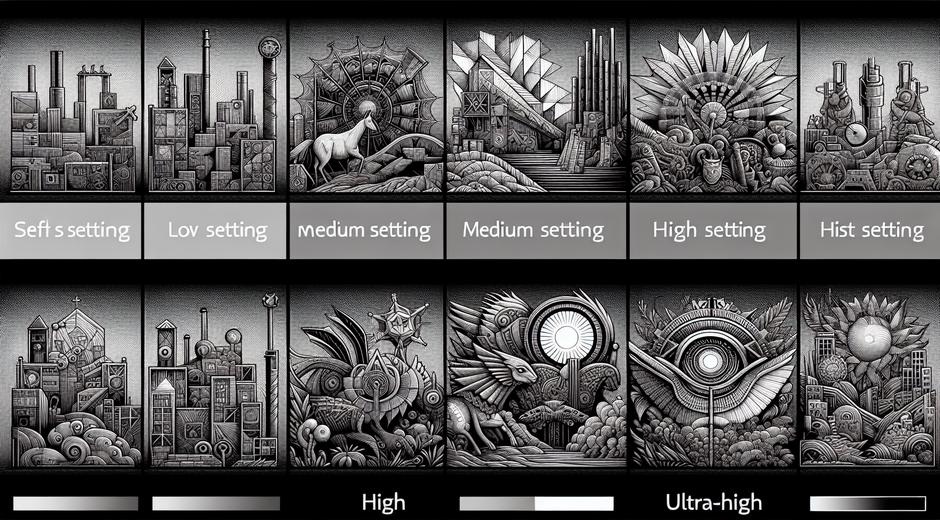
Graphics presets are collections of video settings grouped under simple labels such as low medium high or ultra. Each preset applies a bundle of individual options at once so players can quickly change the overall visual quality. Presets take care of settings like texture quality shadows reflections ambient occlusion anti aliasing and post processing effects so that you do not need to adjust dozens of sliders manually. The trade off is that presets are generic. They aim to match a broad range of hardware so they may not be perfect for every system or every game.
How Presets Affect Performance and Visuals
Changing a graphics preset alters how much work the GPU and the CPU must do each frame. Higher presets enable richer textures more detailed shadows more realistic lighting and more complex particle effects. Those enhancements create a more immersive experience but also increase frame time which can lead to lower frame rates. Lower presets reduce visual complexity which yields higher frame rates and can produce a smoother gameplay experience especially on older hardware.
Understanding which settings within a preset are most taxing lets you target adjustments that yield the biggest performance gains for the smallest visual impact. For example reducing shadow quality or screen space reflections often yields larger performance boosts than lowering texture quality. That knowledge helps you fine tune presets to fit your priorities.
Common Settings Inside Graphics Presets
Most presets control a similar set of options. Knowing what each option does helps you decide which elements to keep and which to lower.
1. Texture Quality This setting changes the resolution of surfaces in the game. Higher texture quality makes characters and environments look sharper and more detailed. It primarily uses video memory.
2. Shadow Quality Shadows add depth but are costly. Lowering shadow resolution or turning off dynamic shadows can improve frame rates significantly.
3. Ambient Occlusion This effect simulates soft lighting in corners and crevices improving perceived depth. It can be demanding so try lower quality or a cheaper method.
4. Anti Aliasing This smooths jagged edges on geometry. Some methods are cheaper than others so try a different technique rather than disabling it completely.
5. Post Processing Effects Bloom depth of field motion blur and color grading change the final image. These can be toggled for clarity or cinematic feel depending on your taste.
6. Reflections Reflections bring realism to water and shiny surfaces but are often GPU intensive. Reducing reflection quality is a common way to boost performance.
Choosing Presets by Hardware Class
Picking the right preset depends on what hardware you have and what you want from the game. Below are simple guidelines for different setups.
1. Entry Level Machines If you are running older graphics hardware choose low or medium presets to keep frame rates consistent. Prioritize stable frame rate over visual features that are too costly.
2. Mid Range Builds For mainstream rigs medium to high presets are often ideal. Keep textures high if you have sufficient video memory and drop expensive effects like high quality shadows if you need extra frames.
3. High End Systems If you own a powerful GPU you can use high or ultra presets to enjoy the full visual experience. However even with top hardware consider turning off motion blur and similar effects if you prefer clarity for competitive play.
4. Laptops and Small Form Factor Machines Thermal limits can throttle performance so test different presets and watch temperatures. Choose a preset that keeps frame rates stable without overheating the system.
Tweaking Presets for Frame Rate and Image Quality
Presets are a great starting point but fine tuning is where you get the best balance. Follow these steps to adjust a preset carefully.
1. Start with a preset that matches your hardware. Then run a benchmark or use an in game stress test to measure frame rates.
2. Identify the biggest frame killers For many games shadows and reflections cause the steepest drops in frames. Lower these first.
3. Adjust texture quality only if you have limited video memory. If you have abundant memory textures can stay high for better clarity.
4. Try alternative anti aliasing methods Some techniques like temporal anti aliasing are effective but can cause blur. MSAA is sharper but more expensive. Pick what looks best for you.
5. Use dynamic resolution scaling if available This lets the game reduce rendering resolution when frame rates fall and increase it when there is headroom so you can keep graphical options high while maintaining stability.
Graphics Presets for Specific Play Styles
Different gamers have different priorities. Here are presets tailored to common play styles.
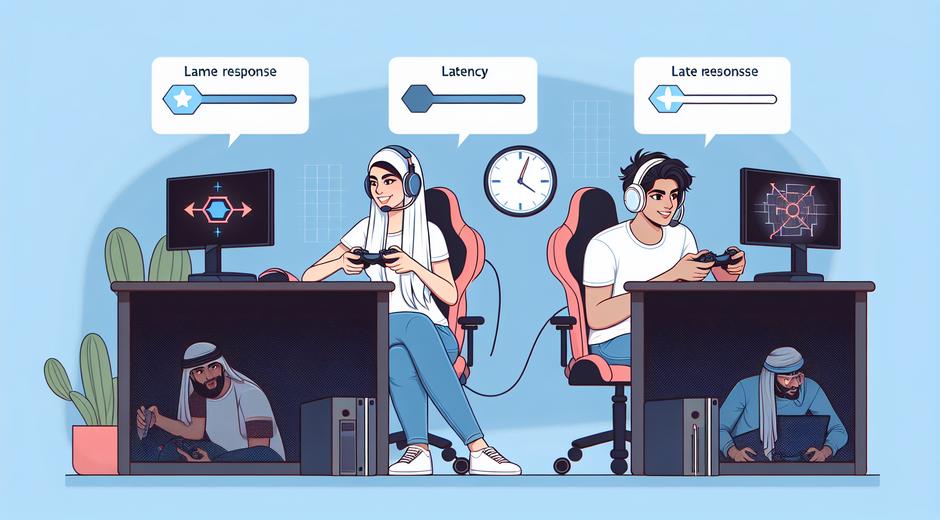
1. Competitive Play Aim for the highest consistent frame rate and the lowest input lag. Use low to medium presets and disable motion blur depth of field and unnecessary post processing. Clarity matters more than cinematic effects.
2. Casual Play If you want great visuals without intense tuning choose high presets and keep textures and shadows at pleasing levels. Enable depth of field and color grading for cinematic moments.
3. Content Creators Streamers and video makers may prioritize the visual experience. Use higher presets for recordings and switch to a more performance oriented preset when live streaming to keep upload bandwidth stable.
Creating and Sharing Custom Presets
Many games allow saving custom presets so you can switch quickly between setups for performance intensive scenes and cinematic moments. When you craft a custom preset name it and test it in multiple areas of the game to ensure it behaves well under different loads.
Once you have a good custom preset consider sharing it with your community. Upload lists of recommended settings to forums or social channels. If you publish a guide on your site be sure to include clear instructions for different hardware categories so readers can adapt quickly.
For more guides and the latest tuning tips visit gamingnewshead.com where we publish updates and step by step tutorials for popular titles.
How Presets Fit into a Broader Optimization Strategy
Graphics presets are part of a complete optimization approach. To get the most from your rig follow these additional steps.
1. Keep Drivers Updated Graphics driver releases often bring game specific improvements that can raise frame rates or fix visual problems.
2. Monitor Temperatures Thermal throttling reduces performance so ensure your cooling is adequate and dust free.
3. Tweak Game Specific Files Some games support advanced configuration files where you can force a change not exposed in the menu. Use those only if you understand the setting.
4. Use In Game Benchmarks Run repeatable tests so you can compare the effect of each change. That makes it easy to find the best combination for your setup.
If you need broader coverage on gaming news hardware reviews and release announcements check partner resources such as Newspapersio.com for additional press and documentation.
Final Tips and Conclusion
Graphics presets are meant to simplify the process of adjusting visual fidelity but the best results come from informed tweaking. Start with a preset that matches your hardware then adjust individual settings to target the largest performance gains first. Keep textures high if you have video memory to spare reduce shadows and reflections to improve frame rate and prefer clarity over heavy post processing for esports gameplay.
With the right approach you can enjoy great visuals without sacrificing smooth play. Use presets as a time saving baseline then personalize them to unlock the best balance for your hardware and your style. For continuous updates guides and presets tailored to popular games remember to explore gaming news and tutorial sections on our site and trusted partner outlets.