

Game Optimization Tips That Will Boost Performance and Player Experience
Whether you are a casual player or a developer, understanding game optimization tips can make a huge difference in performance and playability. This guide covers practical strategies for improving frame rates, reducing load times, lowering latency, and creating a smoother overall experience on a variety of hardware. Use these actionable suggestions to get the most out of your current setup and to plan upgrades smartly.
Why Game Optimization Tips Matter
Players expect fluid visuals and responsive controls. Poor performance leads to frustration and can push players away from a title or platform. For developers, optimized games reach wider audiences because they run acceptably on more devices. Game optimization tips address both hardware and software elements and help balance visual quality with consistent performance.
Start with a Clear Baseline
Before applying any game optimization tips, measure current performance. Use benchmarking tools to record frame rates under controlled scenarios and capture metrics for CPU use, GPU use, memory consumption, and storage throughput. Baseline numbers let you see which changes actually work and which do not. Repeat tests after each change to confirm gains.
Update Drivers and System Firmware
Outdated graphics drivers and system firmware often cause poor performance. Keep GPU drivers up to date to benefit from game specific fixes and performance improvements. System updates can include important fixes for resource management. On Windows use trusted update tools. On consoles follow the official update process. For specific guides and news visit gaming resources like gamingnewshead.com to stay current on recommended drivers and version notes.
Optimize In Game Settings
Tweaking in game settings is one of the fastest game optimization tips for immediate results. Start by setting resolution to match your monitor native resolution. Then adjust the following settings in order of impact on performance
- Texture quality to match GPU memory capacity
- Shadow quality because shadows can consume CPU and GPU cycles
- Particle effects and post processing which often hit frame rate hard
- Anti aliasing which smooths edges but can reduce frame rate significantly
- Draw distance and level of detail that affect how much geometry is processed
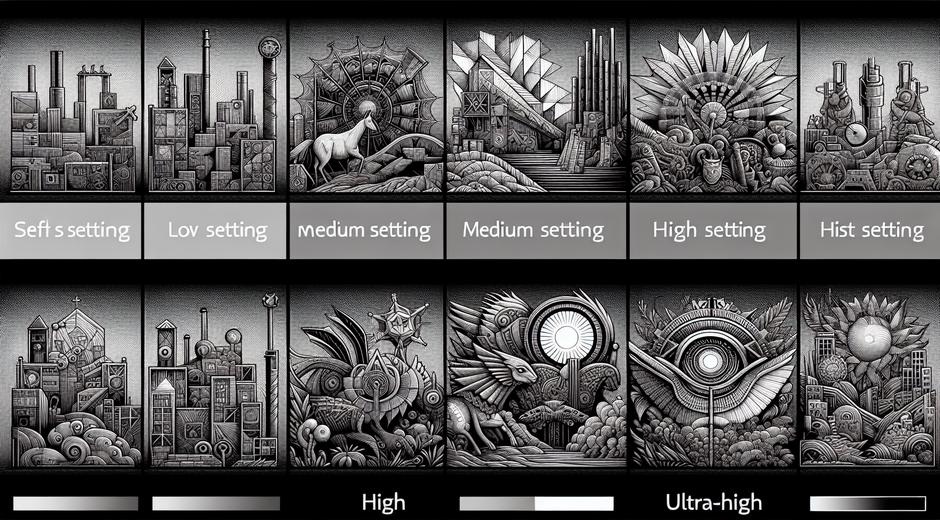
Many modern games offer presets like low medium or high. Use them to find a balance and then fine tune individual options for better results. If you have limited VRAM reduce texture quality first. If CPU usage is the choke point lower physics quality or crowd simulation.
Manage Background Processes
Background applications consume resources and reduce available CPU and memory for the game. Close unnecessary apps and disable overlays that are not required. On PC use task management tools to find resource heavy processes. For mobile devices use battery and app management settings to limit background services. Many operating systems provide gaming mode features that focus system resources on running games.
Storage Optimization and Load Time Reduction
Slow storage can increase load times and cause hitching when streaming assets in open worlds. Solid state drives provide major improvements over older spinning drives. Keep game installations on faster storage when possible. Clear temporary files and ensure there is enough free space to prevent fragmentation or system slowdowns. When installing new games plan storage layout to maintain consistent read speeds.
Network and Latency Improvements
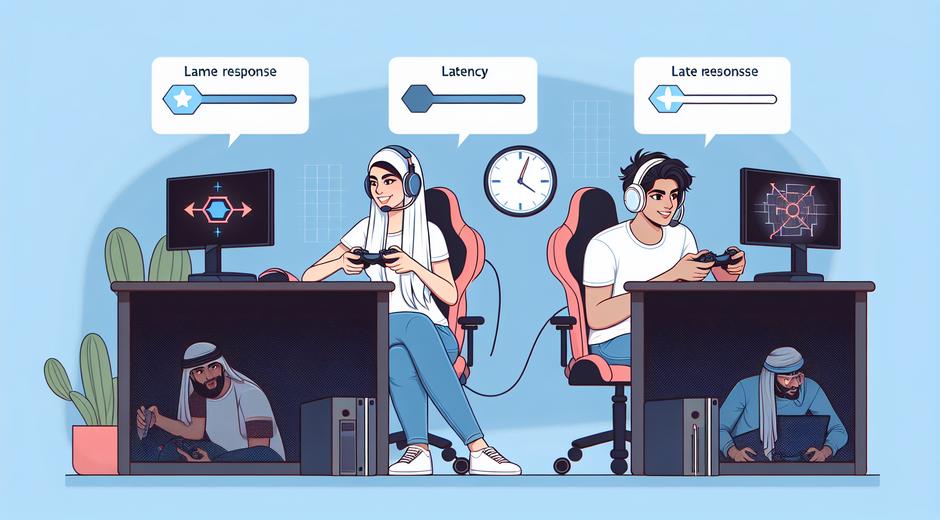
For online games network latency and packet loss can be more damaging than raw frame rate. Use wired connections when possible and choose servers with lower ping. Close bandwidth heavy background uploads and streaming applications. If you use Wi Fi place the router closer and reduce interference. Gaming routers and traffic prioritization can help but proper placement and spectrum management often give the biggest improvements.
Power and Thermal Management
Thermal throttling reduces performance when components overheat. Ensure proper cooling and clean dust from fans. For laptops use cooling pads and avoid soft surfaces that block airflow. Configure power settings to allow higher performance while gaming. On some systems choosing a balanced profile may reduce turbo clocks and hurt frame rate. Monitor temperatures and adjust cooling strategies as needed.
Asset and Memory Management for Developers
For creators applying game optimization tips at the development level yields the largest wins. Optimize textures by using compressed formats and mipmaps. Merge meshes and remove unseen geometry to reduce draw calls. Use instancing for repeated objects. Implement streaming systems to load only assets needed for the current area. Profile memory use and resolve leaks early. Efficient garbage management and pooling for frequently created objects reduce CPU spikes.
Level of Detail and Culling Strategies
Implement level of detail systems to reduce geometry complexity at distance. Combine LOD with occlusion culling and frustum culling so the engine renders only what is visible and relevant. These game optimization tips reduce GPU load and improve frame pacing in dense scenes. Test with various camera scenarios and ensure transitions between detail levels are not jarring.
Use Adaptive Quality and Scalability
Adaptive quality systems adjust rendering resolution or detail level based on current performance. This preserves a smooth frame rate by lowering visual fidelity during intense moments and restoring it during calm scenes. Provide scalable settings so players on low hardware can still enjoy the game. Combine adaptive quality with configurable presets so users can choose their preferred trade off.
Testing and Continuous Monitoring
Optimization is not a one time task. Use automated test suites to run performance checks and log regressions. Monitor post launch feedback to identify worst case scenarios. For multiplayer titles gather real world telemetry to find hotspots. Continuous monitoring helps prioritize which game optimization tips to apply next and prevents new updates from degrading performance.
Budgeting for Upgrades and Cost Effective Choices
If hardware upgrades are required consider cost effective options. Often a faster solid state drive or an additional memory module provides better returns than an expensive top tier graphics card for certain setups. For finance and resource planning see partner advice at FinanceWorldHub.com which covers budgeting and upgrade strategies that apply to gamers and developers alike.
Final Checklist of Game Optimization Tips
- Measure performance and create a baseline before changing settings
- Keep drivers and system software current
- Tweak in game settings focusing on textures shadows and post processing
- Manage background processes and use gaming mode when available
- Prioritize faster storage to reduce loading and streaming delays
- Improve network stability for online play
- Address thermal issues to prevent throttling
- Use LOD culling and asset streaming in development
- Implement adaptive quality to maintain smooth frame rates
- Continuously test and monitor performance after updates
Conclusion
Applying these game optimization tips helps players enjoy smoother gameplay and allows developers to reach more users. Start with simple changes like driver updates and in game settings adjustments then move to deeper optimizations such as memory management asset streaming and network tuning. Regular testing and real world monitoring will keep performance consistent through updates and hardware changes. For ongoing tips news and guides check trusted gaming resources and planning partners for upgrade advice and budgeting information.