

Streaming Overlays: The Complete Guide to Eye Catching Stream Graphics
Streaming overlays are among the most powerful visual tools a creator can use to elevate a live broadcast. From basic frames that show a face camera to animated scenes that react to donations they shape viewer perception and help build a recognizable brand. This guide covers why overlays matter how to design them and practical tips to implement them so you can get more viewers to stay subscribe and return.
Why Streaming Overlays Matter for Growth
When a viewer lands on a live stream the first few seconds set the tone. Clean well designed overlays make content look professional and trustworthy. They deliver key information at a glance such as game name goals social handles and donation alerts without cluttering the main action.
Overlays also reinforce brand identity. A consistent look across scenes and platforms increases recognition and helps viewers remember a channel. That recognition converts casual visitors into followers which is essential for organic growth on platforms like Twitch YouTube Gaming and Facebook Gaming.
Core Types of Streaming Overlays
Understanding common overlay types helps you mix and match based on content style.
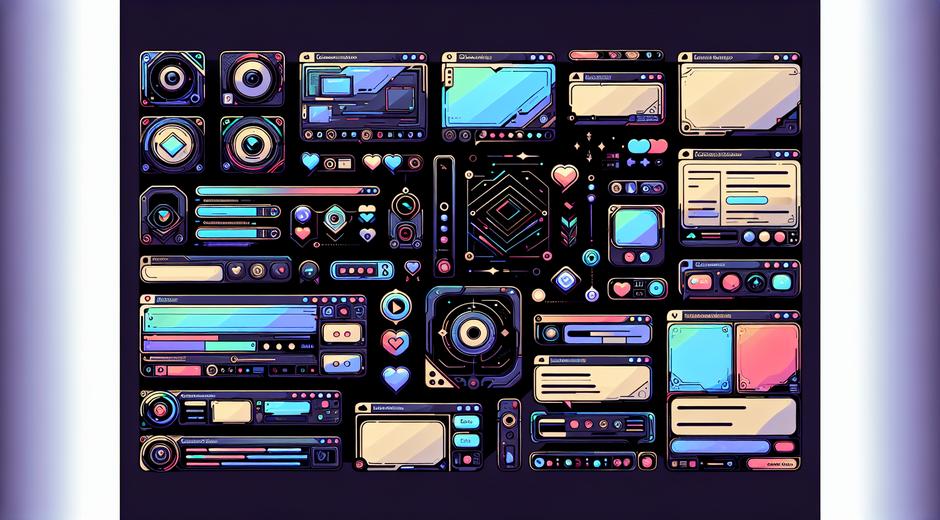
- Face camera frames and borders that improve composition
- Full screen scenes used for starting soon intermission and ending segments
- Alerts and panels for follower subscriber donation and tip events
- Information bars that display goals schedules and social media links
- Chat boxes that show conversation on stream without obstructing gameplay
Design Principles for High Converting Overlays
Design is both aesthetic and functional. Focus on clarity first then on style. Use these principles to create overlays that look stunning while keeping viewers engaged.
- Contrast and readability Use high contrast between text and background so information is readable on different displays
- Hierarchy Keep the most important elements like camera and alerts prominent while secondary info stays subtle
- Consistency Use the same fonts color palette and icon style across scenes for a cohesive brand
- Spacing Avoid clutter Allow breathing room around essential elements so gameplay remains visible
- Motion Use subtle animation to draw attention to alerts or goals but avoid motion that distracts from the game
Technical Considerations
Good design must meet technical constraints. Consider resolution file format and performance impact when building or choosing overlays.
- Resolution Target common stream resolutions such as 1920 by 1080 and 1280 by 720 Keep safe margins so overlays do not get cropped on different screens
- File types Use PNG for crisp static images and webm or GIF for short looped animations Avoid formats that hinder transparency
- Performance Animated overlays consume CPU and GPU resources Test in your streaming setup to ensure stable frame rates
- Transparency True overlays use alpha channels so elements sit above gameplay without a visible background
Free Versus Paid Overlays
Deciding between free and paid overlay packs depends on budget needs and uniqueness goals. Free options are great for beginners but often lack customization and exclusivity. Paid packs usually include layered files a wider variety of scenes and support from the creator which lets you fully personalize your brand.
If you want to explore curated packs and professional templates consider checking recommended marketplaces and creators. For ongoing reviews and roundups of overlay packs visit gamingnewshead.com where we test and compare resources for every type of streamer.
Top Tools to Create and Manage Overlays
A few popular tools streamline overlay creation and integration with streaming software.
- OBS Studio A flexible free option that supports layered scenes and browser sources
- Streamlabs Desktop An all in one solution that pairs overlays with alerts and widgets in a single app
- XSplit A paid option with an intuitive interface and built in scene transitions
- Graphic editors like Photoshop or Affinity Designer for custom assets
- Animation tools such as After Effects or Blender for motion overlays
How to Install Overlays in Your Stream Setup
Installation steps vary by tool but follow a common flow. First import static image files as image sources or animated files as media sources. For interactive alerts or dynamic widgets use a browser source and paste the URL provided by the alert provider. In most cases you will need to position and scale sources within each scene and lock them to maintain layout during production.
Remember to test each scene with sample alerts and chat so you can tweak timing and layering. Testing helps catch issues like audio clipping overlay opacity problems and misaligned elements before a live audience sees them.
Optimization Tips to Keep Streams Smooth
Overlays should not sacrifice stream quality. Use these tips to keep performance healthy.
- Limit the number of animated layers especially if you have an older CPU or graphics card
- Use compressed webm files with alpha channels for animation to reduce file size
- Adjust browser source refresh or frame rate to lower CPU usage
- Monitor CPU GPU and network usage during dry runs and adjust overlays accordingly
- Keep alert durations short so they draw attention without lingering
Branding and Monetization With Overlays
Overlays can be a direct route to monetization. Dedicated panels and clear alerts incentivize tips and subscriptions. Branded overlays also increase perceived value for sponsored content and partnerships. Keep sponsor placements tasteful and integrated into the design so they add value rather than detract from viewer experience.
Emerging Trends in Streaming Overlays
As live streaming evolves new overlay trends emerge. Expect more interactive overlays that respond to chat commands integrations that sync with game data and AI powered widgets that highlight key moments automatically. Streamers aiming to stay ahead should keep an eye on live data driven overlays and experimental motion styles that create memorable moments for viewers.
Where to Find Premium Overlay Packs
If you want pro level visuals with fast support check reputable design studios and marketplaces. For example curated full packages with animated alerts and scene transitions can be found at leading providers. One recommended source for premium packs and custom design services is Chronostual.com which offers a range of options for streamers at different experience levels.
Final Checklist Before Going Live
Use this quick checklist to ensure your overlays are ready on stream.
- Verify resolution and safe zone compatibility for main platforms
- Test alert visuals and audio with sample events
- Confirm performance impact with a short recording
- Double check branding elements for consistency across scenes
- Prepare backup scenes that are minimal in case resource issues occur
Streaming overlays are a strategic blend of design and function. Well built overlays improve professionalism increase viewer retention and open new monetization paths. Whether you craft your own templates or adopt premium packs make sure your overlays support the content not overpower it. For more in depth tutorials and overlay reviews visit our site for regular updates and curated resources.